

Privacy
Know where
your data goes.
Local transcription, AI processing and team sharing have different boundaries. This is how each part of your call is handled.
Audio
Your voice and theirs
Local mode turns sound into text on your Mac. Choosing cloud transcription sends audio off the device.
- Saved
- Local speech processing uses temporary memory buffers. The saved call contains transcript text, not an audio recording.
- Sent beyond your Mac
- On-device recognition is the default. Optional cloud transcription sends audio through the iRocket Meetings server to a speech service.
- Your control
- Choose local transcription to keep speech recognition on your Mac. Cloud transcription is optional and depends on your plan.
The transcript
Saved on your Mac. Live answers use recent text; generating a call summary sends the full transcript to AI.
- Saved
- The transcript is saved in the call record on your Mac.
- Sent beyond your Mac
- Live answers use recent conversation text and exchange history. After-call summaries use the full transcript. Asking about past calls can send their text too.
- Your control
- The “Keep meetings on this computer” option skips automatic AI reports. It does not make every AI feature offline. Your team receives a call transcript when you share that call.
Briefs and documents
Read from your Mac. Relevant text and background notes join the AI request; team packs sync separately.
- Saved
- Briefs and source text are read from files on your Mac.
- Sent beyond your Mac
- Relevant brief and document text, matching facts and background notes can accompany an AI request. More than the words of the question may be sent.
- Your control
- When you use team packs, their text syncs to the team’s shared space separately from sharing a call.
Screenshots
You start the capture. Analyze screen sends an image of your primary display to AI; its written analysis joins the conversation.
- Saved
- The screen image is created in memory. The written analysis is added to the call conversation.
- Sent beyond your Mac
- The captured JPEG, your request and current answer instructions are sent to the configured AI service.
- Your control
- Use Analyze screen or its shortcut to capture. Screen-sharing protection and sending a screenshot to AI are separate actions.
Answers
Saved with your call. Recent answers can return to AI as context, and a shared call includes them.
- Saved
- Saved answers and their sources are kept with the call on your Mac.
- Sent beyond your Mac
- Recent exchanges can be included in later AI requests. Sharing the call includes its saved answers in the team copy.
- Your control
- A call’s local record and its shared team copy are separate. You decide whether to share the call.
Shared calls
- Saved
- Your local call stays on your Mac. Sharing creates a separate record in your team’s cloud workspace.
- Sent beyond your Mac
- The team copy includes the title, timing, transcript, summary, your notes and saved answers. Access to the shared record is limited to team members.
- Your control
- Share uploads the copy; Stop sharing deletes the shared record. Revocation does not remove copies someone already exported or captured.
Contacts and follow-ups
Kit proposes changes after the call. Your approval saves them to your team’s People and Follow-ups.
- Saved
- Proposals wait on the saved call. Approved People and Follow-ups are stored in the team’s cloud workspace, with a local copy for offline reading.
- Sent beyond your Mac
- The AI uses call information to suggest changes. Approved contact and follow-up records are available to your team.
- Your control
- Review changes is an approval gate for People and Follow-ups. The call transcript and AI summary can already be saved before you approve.
Screen sharing
The call panel
is yours to see.
Stay in the call. Keep your answers beside it. The panel stays with you when screen protection is enabled.
Screen protection, on.One call. Two different views.
Your screenThe shared view
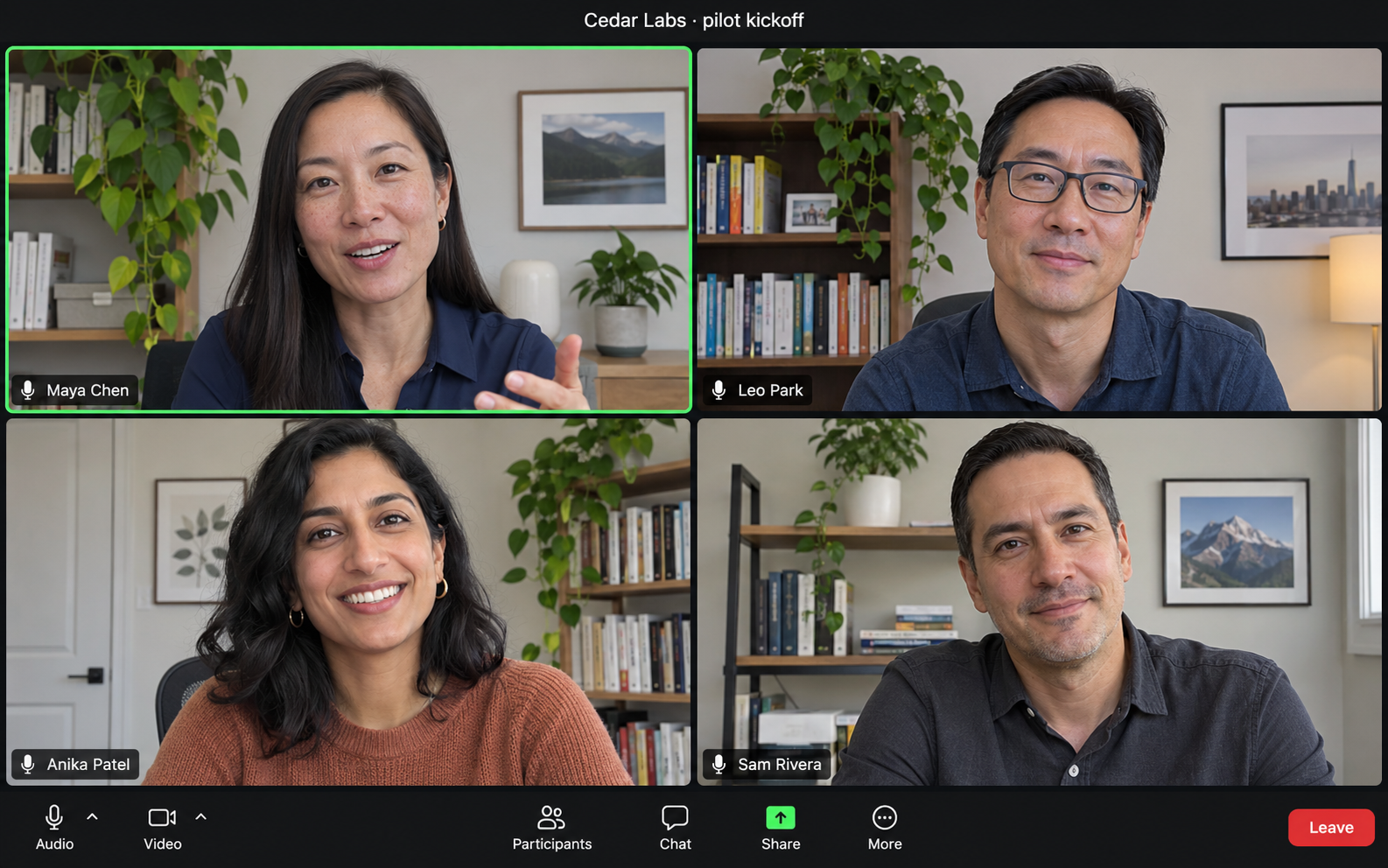
Your answer, source and next question stay close.
They see the call. The iRocket panel is excluded.
The call panel is protected.
Your main app window remains visible.
Screen protection applies to supported capture methods. It does not change the context sent for AI processing.
A question about your data?
[email protected]Let participants know you use AI meeting notes and obtain the permissions your meeting requires. This page explains product behaviour; it does not replace your organisation’s policy or legal advice.